Payil QR App Icon

Payil QR — Help Guide

Scan. Learn. Explore.

Payil QR connects Payil physical textbooks to a rich library of digital content — songs, videos, presentations, lesson notes, and more. Just scan the QR code on any lesson title page and the content opens instantly.

Available for Tamil Books and Computing Books (K–12).

1

Register Your Account

Parents and teachers need to register once before using the app. Students do not need to register — they can use the app through a registered parent or teacher's device.

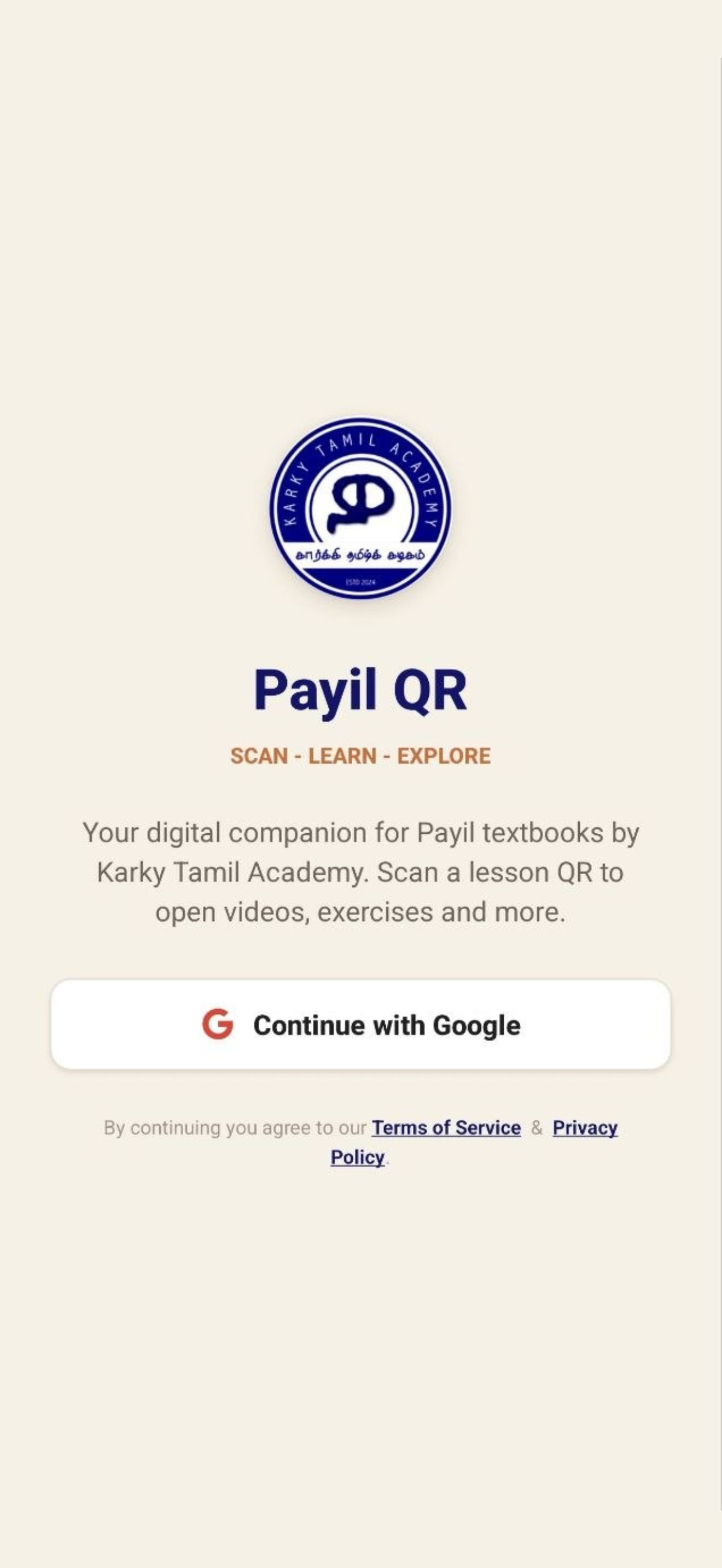
To register, tap Sign Up on the welcome screen and sign in with your Google account or Apple ID.

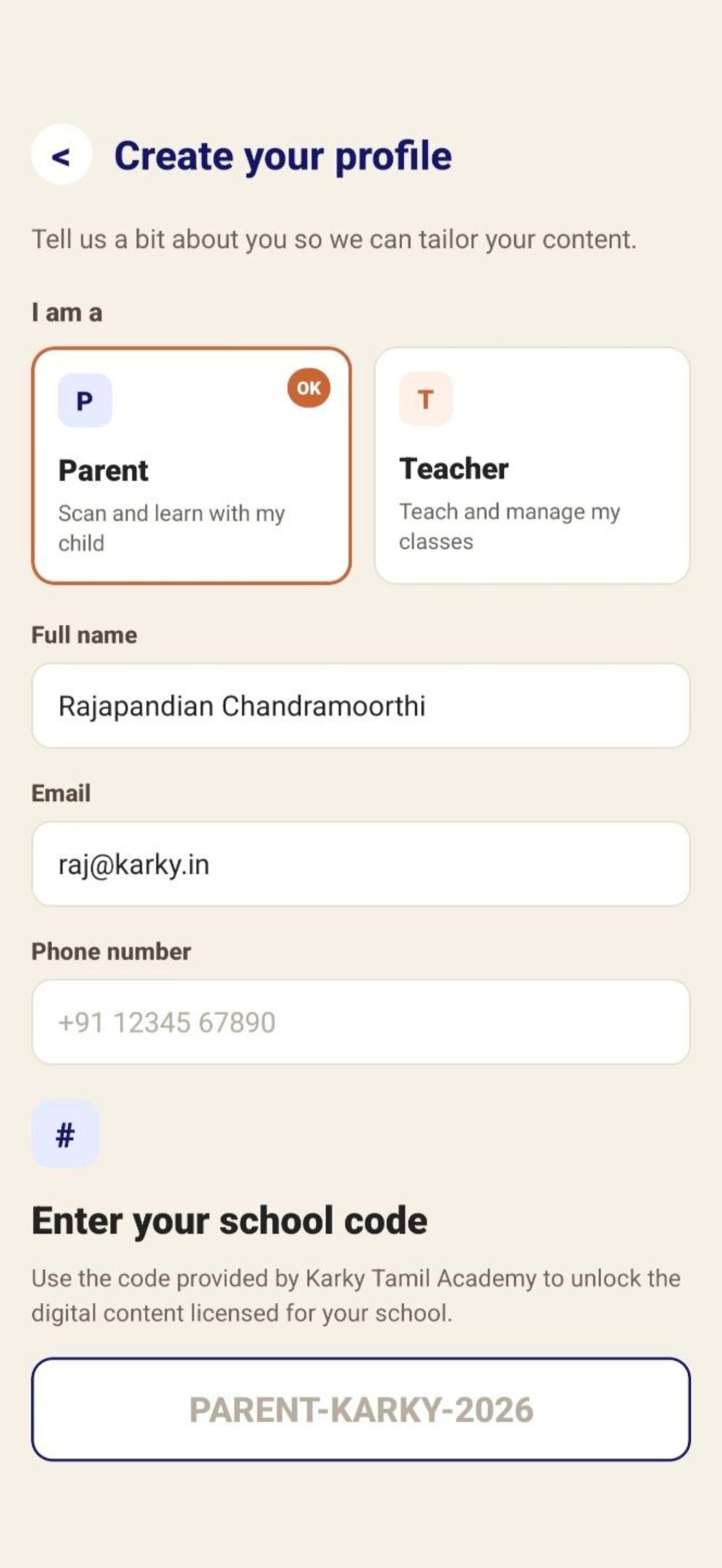
Registration Form
Login Screen
Registration Form
Registration Form

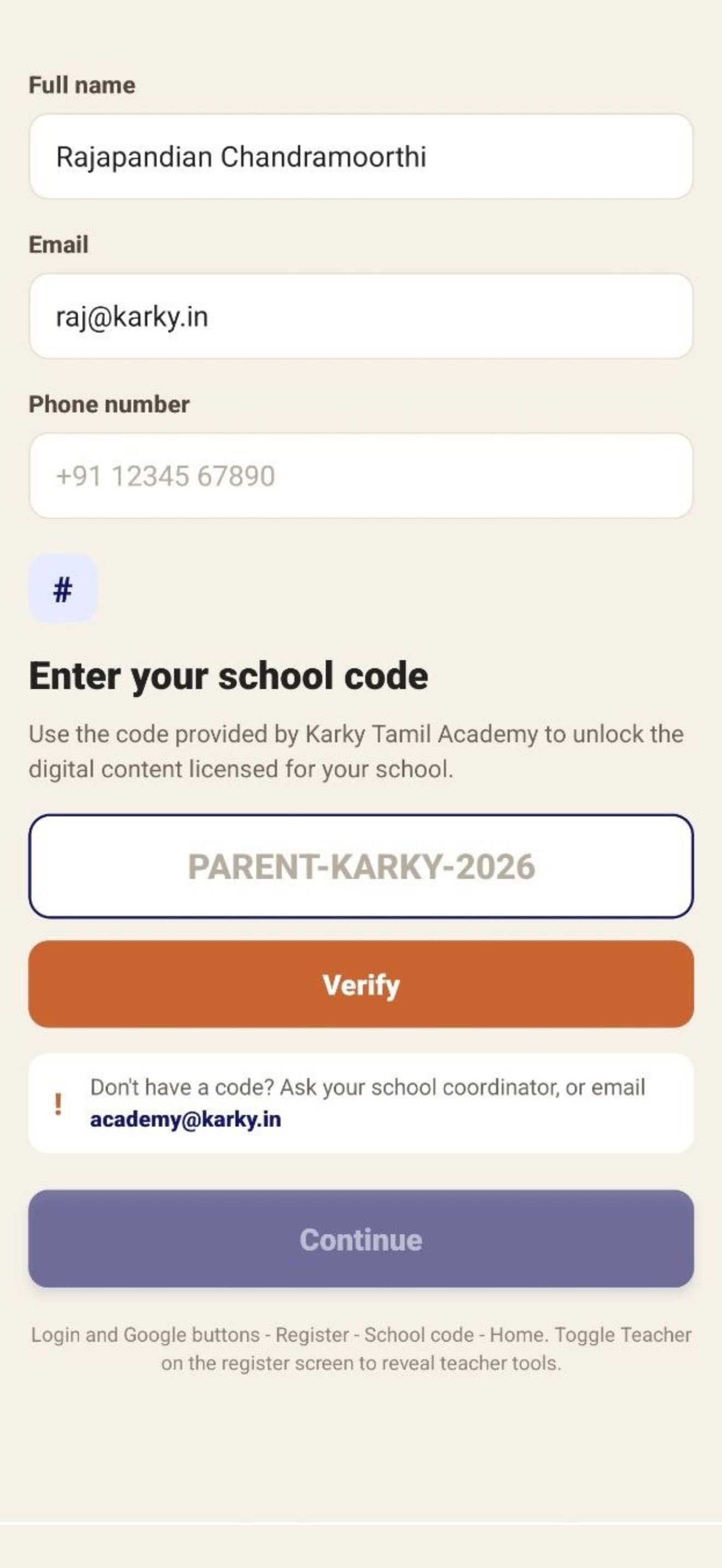
After signing in, fill in your details on the registration form:

🏫
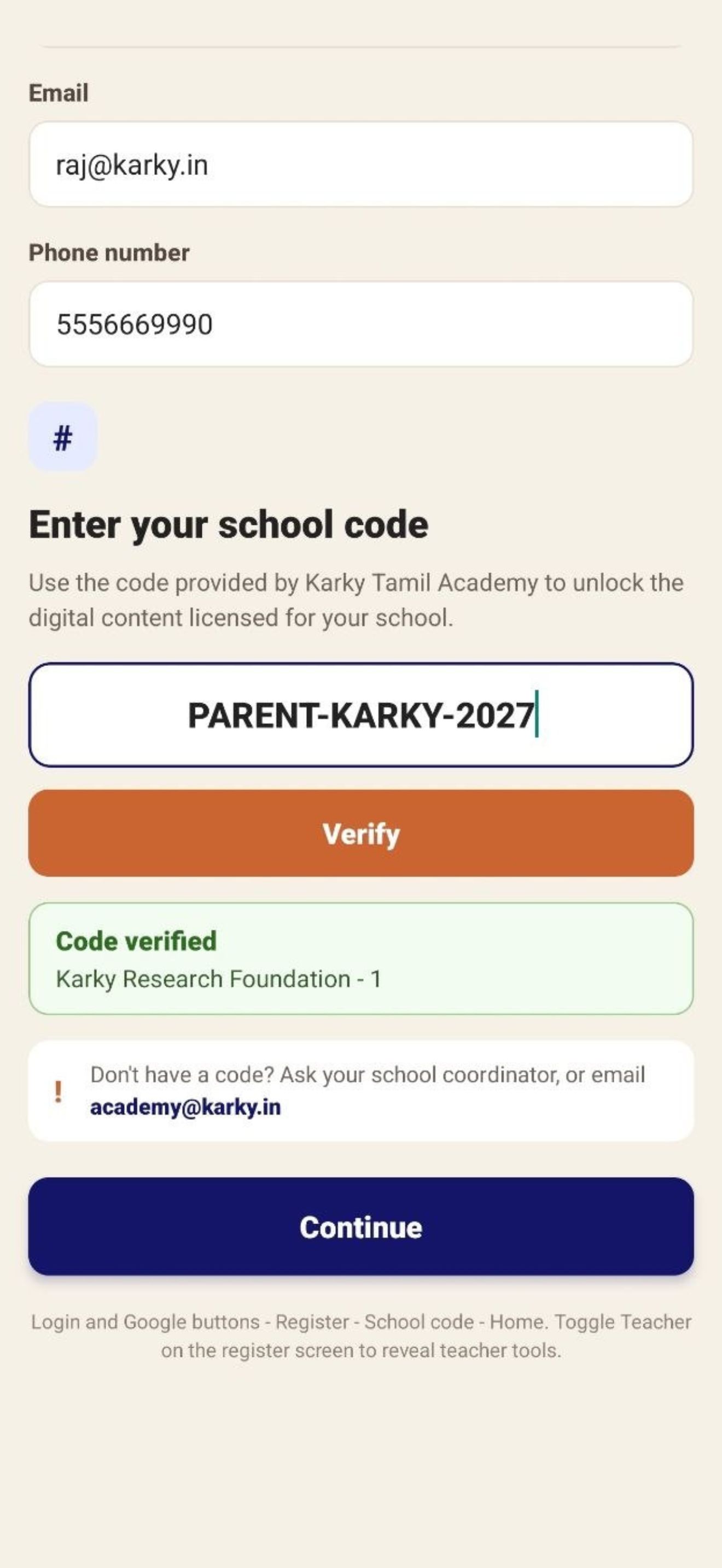
The School Code is issued by Karky Tamil Academy to your school. Contact your school administrator if you don't have it.
Registration Form
Registration Form
Registration Form
School Code Verify

Tap Register to complete setup. You only need to do this once.

2

Logging In

On subsequent visits, open the app and tap Sign In. Use the same Google or Apple account you registered with. The app will log you in automatically and take you to the home screen.

Home Screen
Home Screen
💡
If you use the same account on a new device, your registration details will be restored automatically.
3

Using the QR Scanner

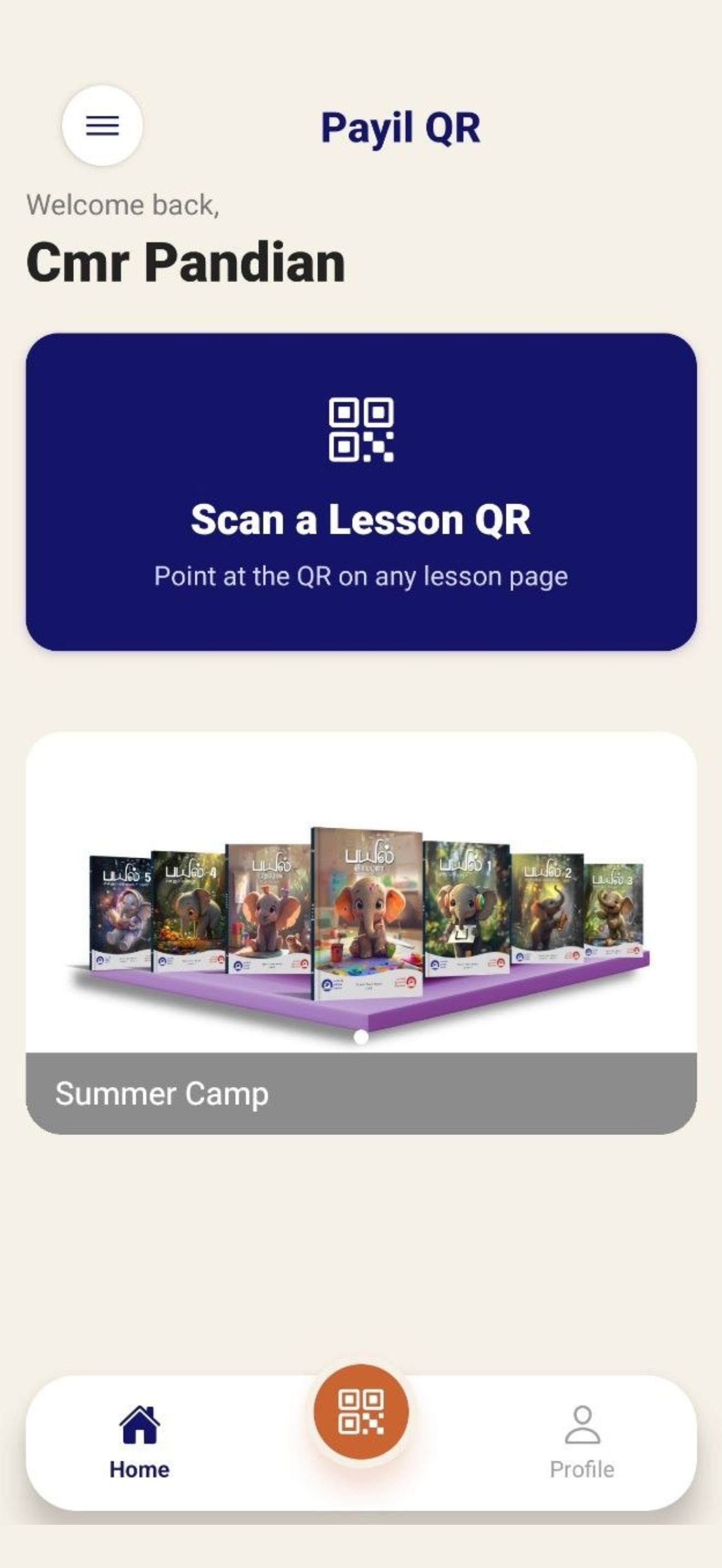
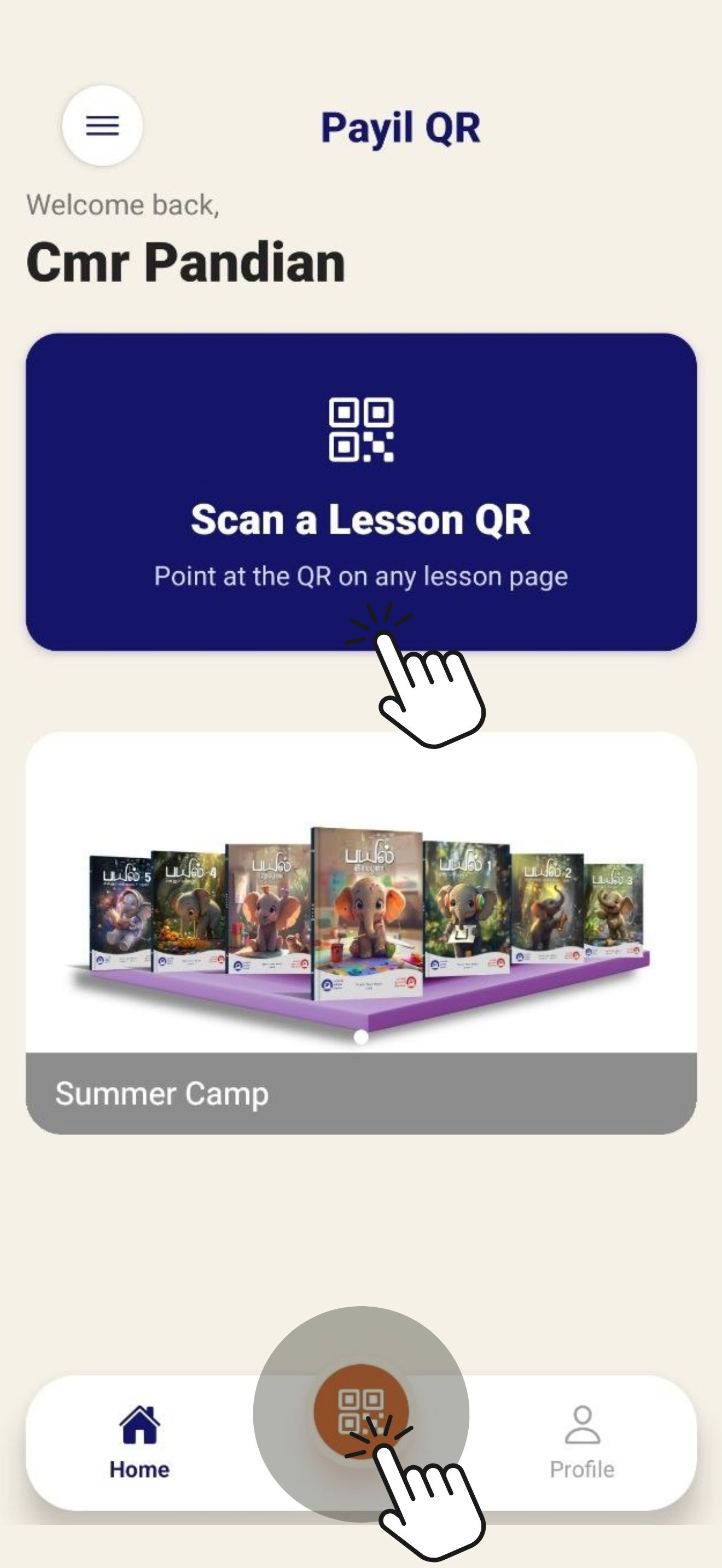
From the home screen, tap the Scanner icon to open the camera.

Home Screen
Home Screen
Scan Icon
Click Any one of this icons

Camera Permission

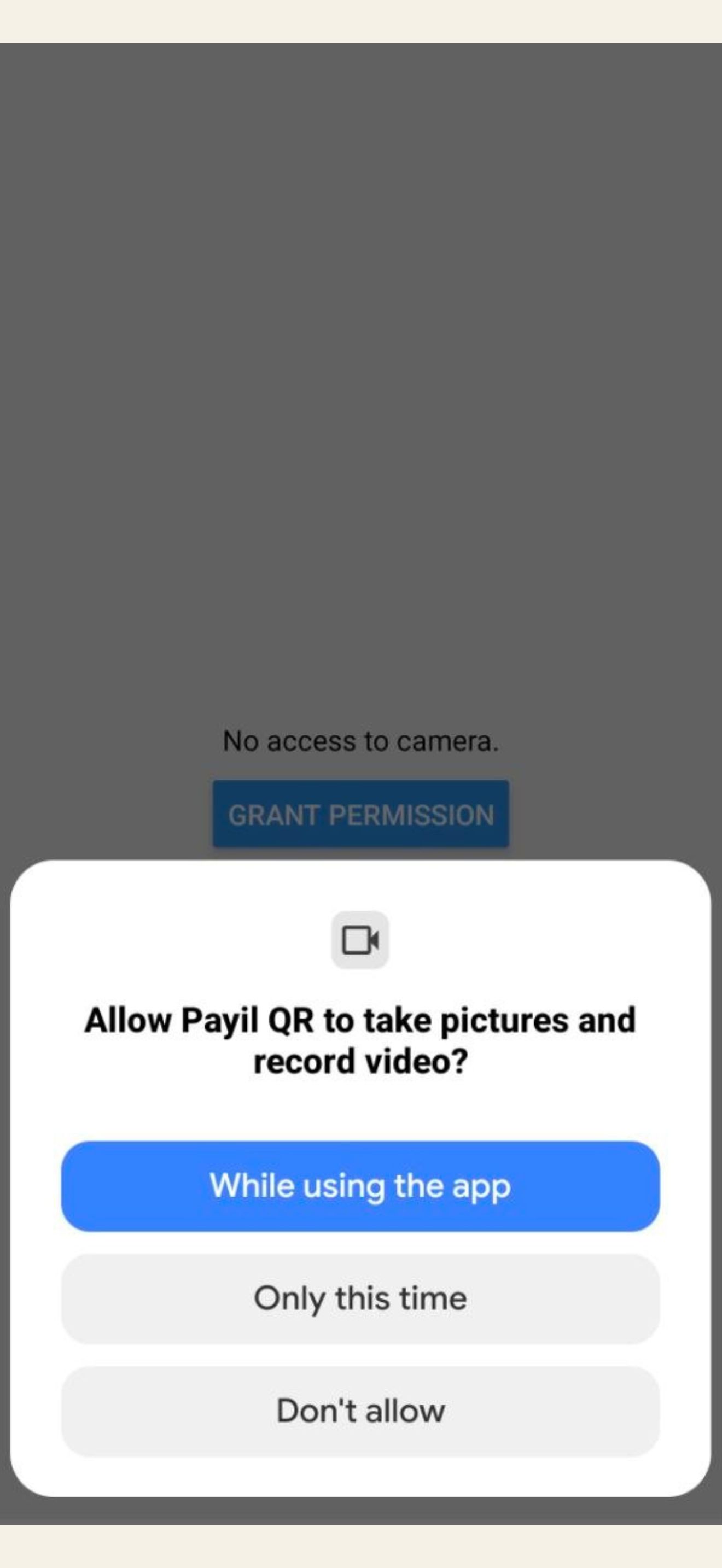
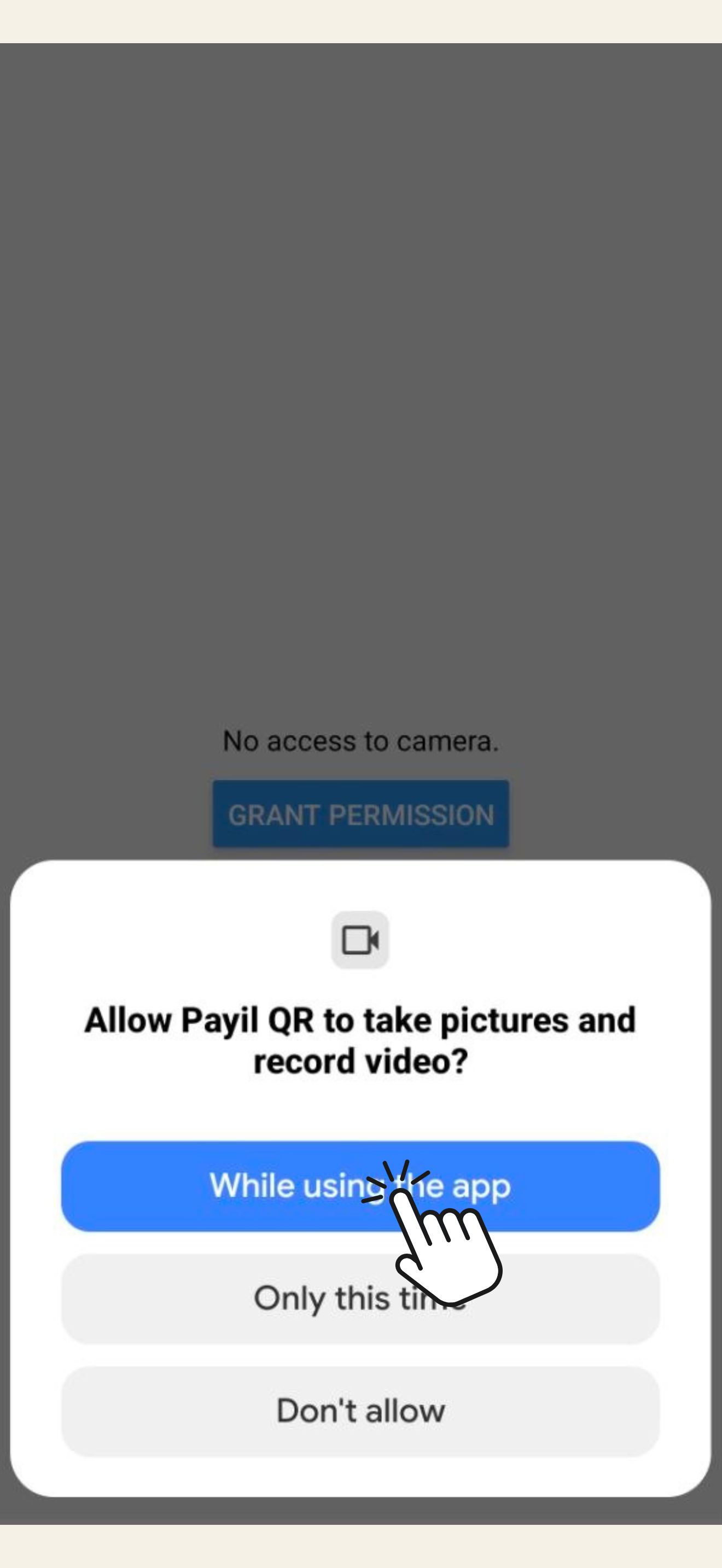
The first time you tap the scanner, your device will ask permission to use the camera. Tap Allow to continue.

Registration Form
your device will ask permission
Registration Form
Allow to continue
⚙️
If you accidentally tapped Don't Allow, go to your device Settings → Apps → Payil QR → Permissions and enable Camera access manually.
4

Scanning a Payil Textbook QR Code

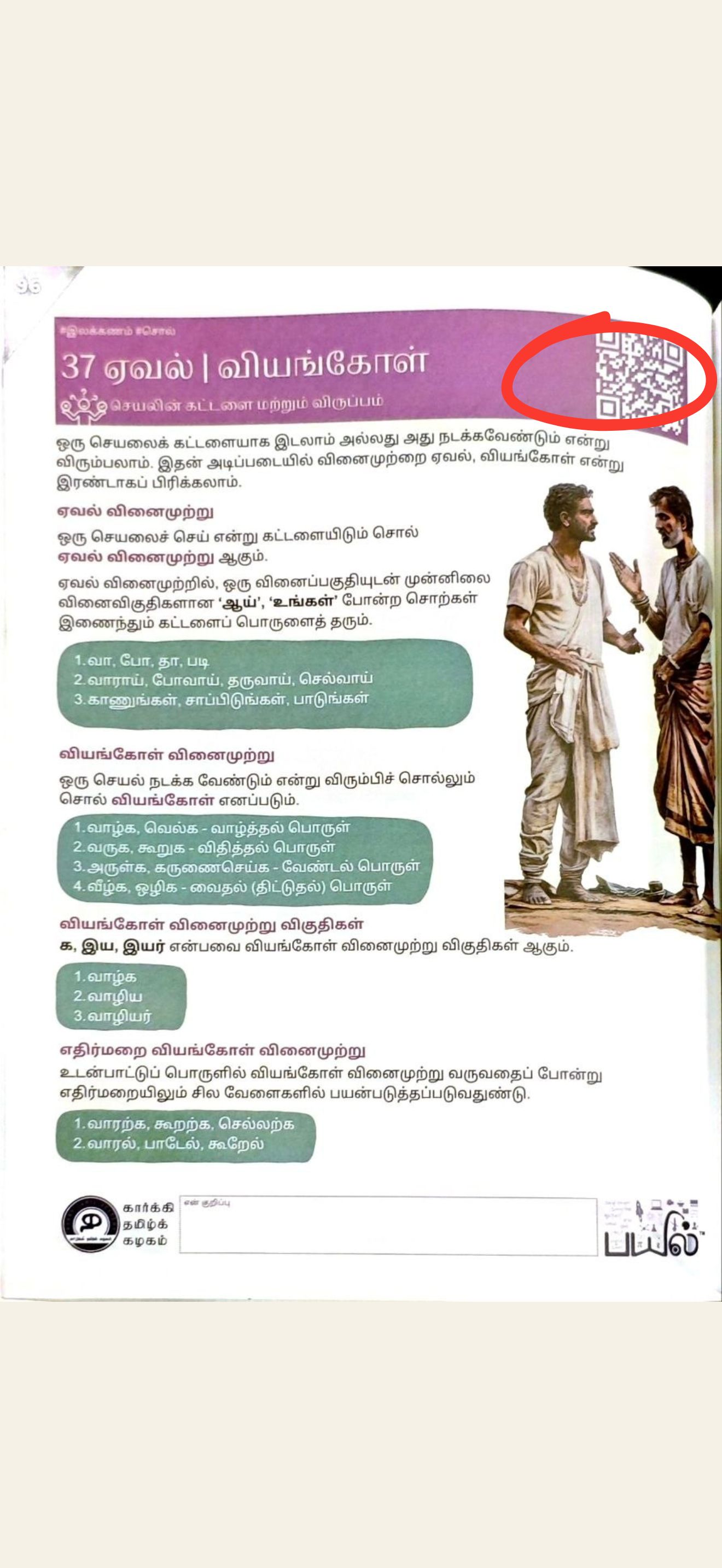
Open any Payil Tamil or Payil Computing textbook and turn to any lesson. Every lesson has a QR code on the lesson title page.

QR Code
QR code on the lesson title page
QR Code
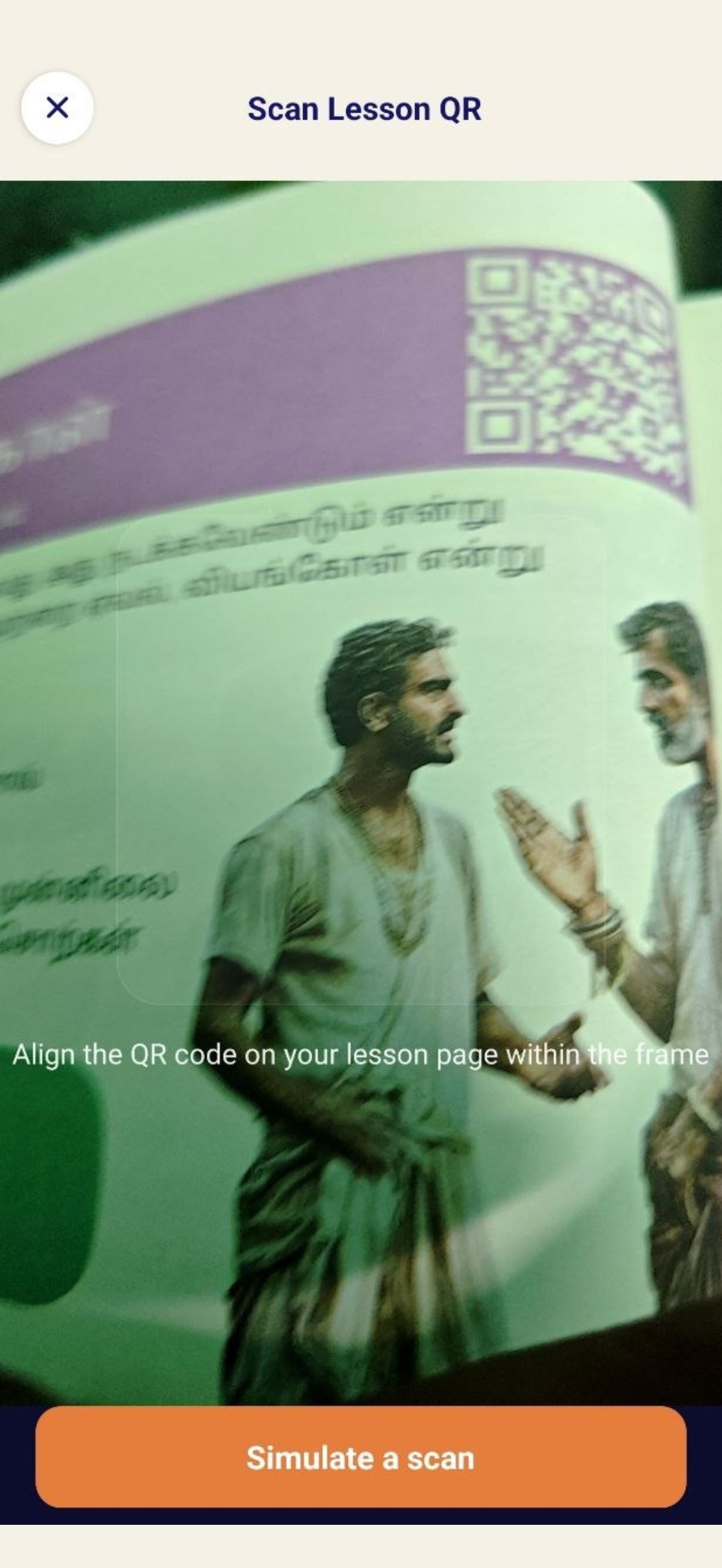
Qr Code Scan

How to scan:

💡
If the scan doesn't work, check that the page is flat, well-lit, and not reflecting glare. Wipe your camera lens if needed.
5

Digital Content Page

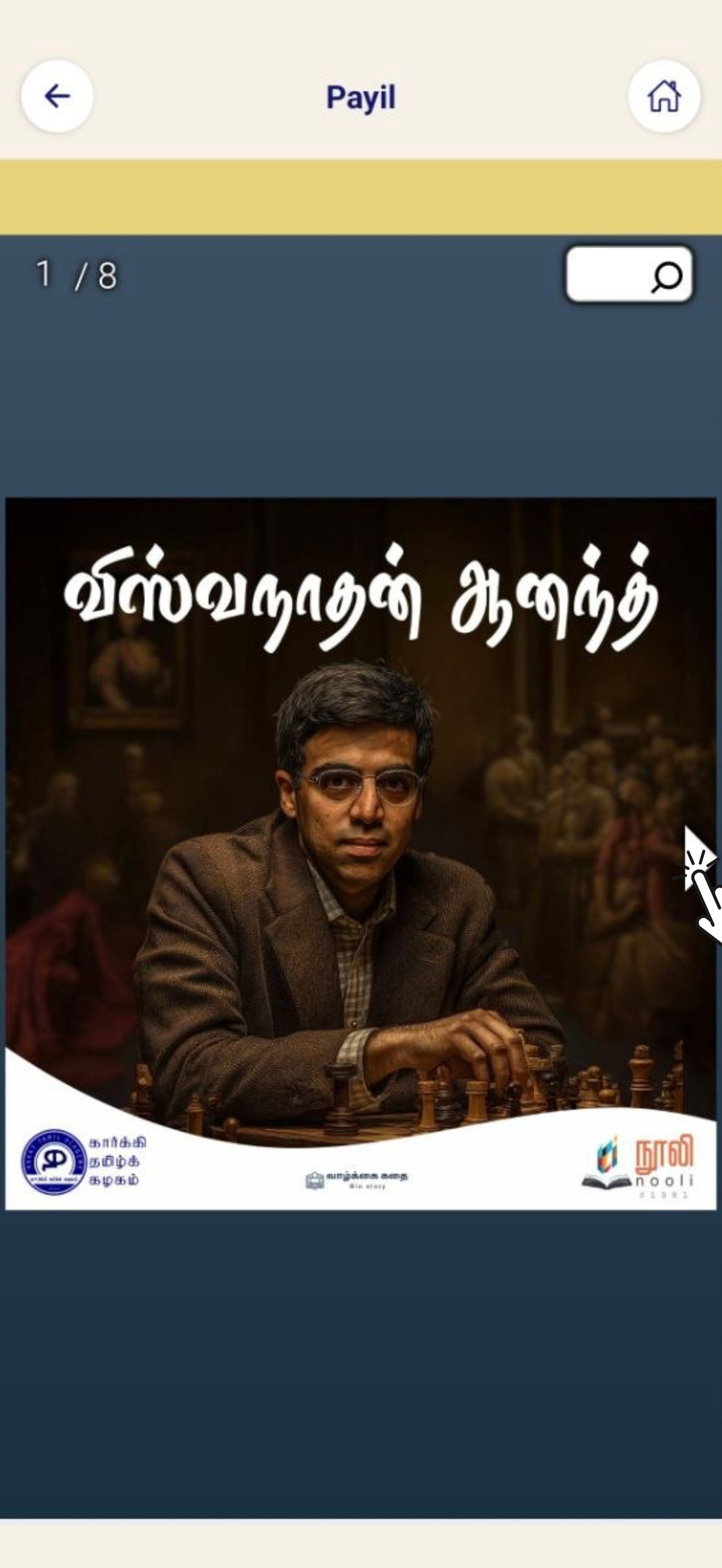
After a successful scan, the app opens the Digital Content page for that lesson. The content available depends on the lesson — not all content types appear for every lesson.
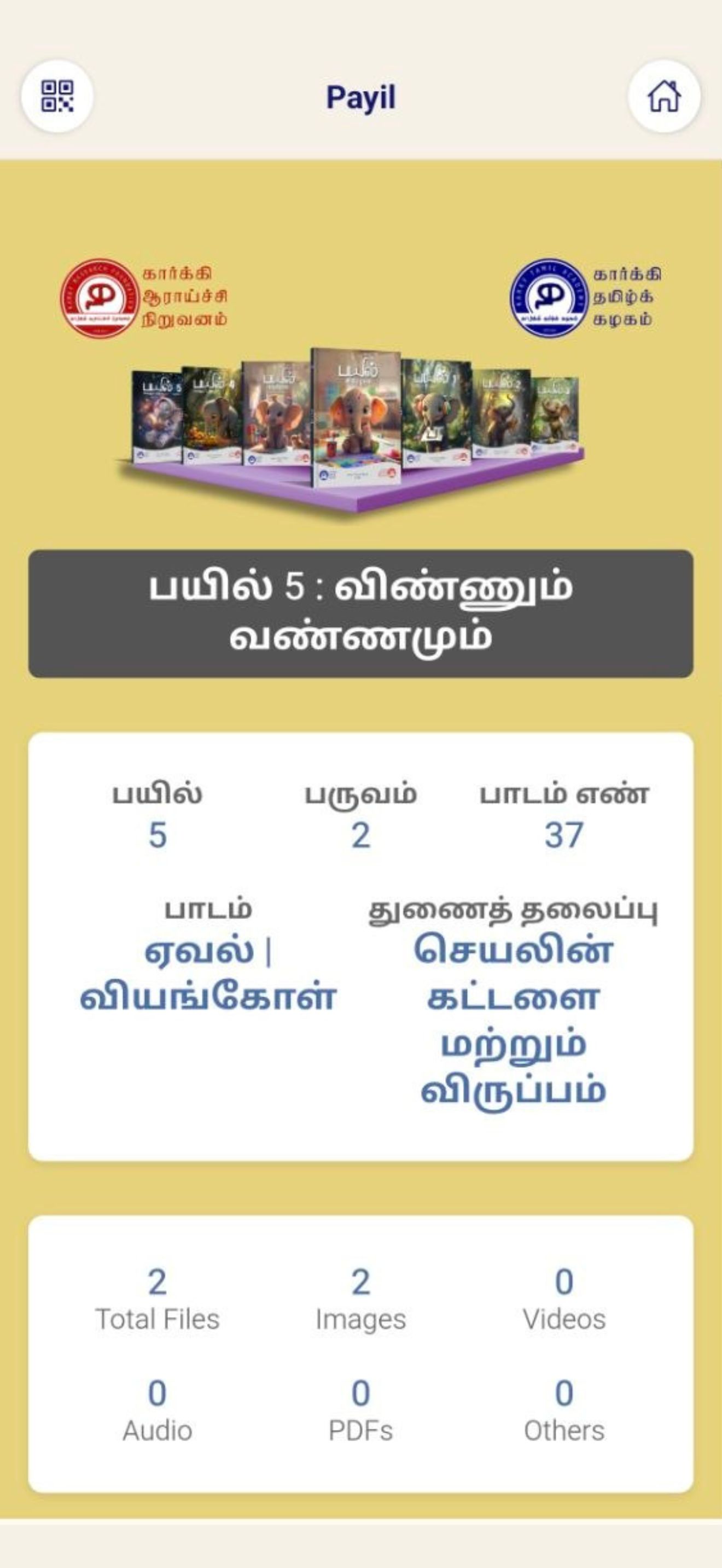
Lesson Page
Lesson Page

The following types of content may be available:

🎯
Learning Outcomes & Teaching Tips Objectives and classroom guidance for teachers
🎵
Songs Lesson-related songs, playable in the app
📊
Presentation Files Downloadable slides for classroom use
📝
Lesson Notes Summary and key points for the lesson
📚
Additional Books Supplementary flip books for extended reading
Question Bank Downloadable Q&A with answers
🎬
Videos Lesson-related video content, played in the app
🔊
Audio Books Listen to the lesson as an audio book
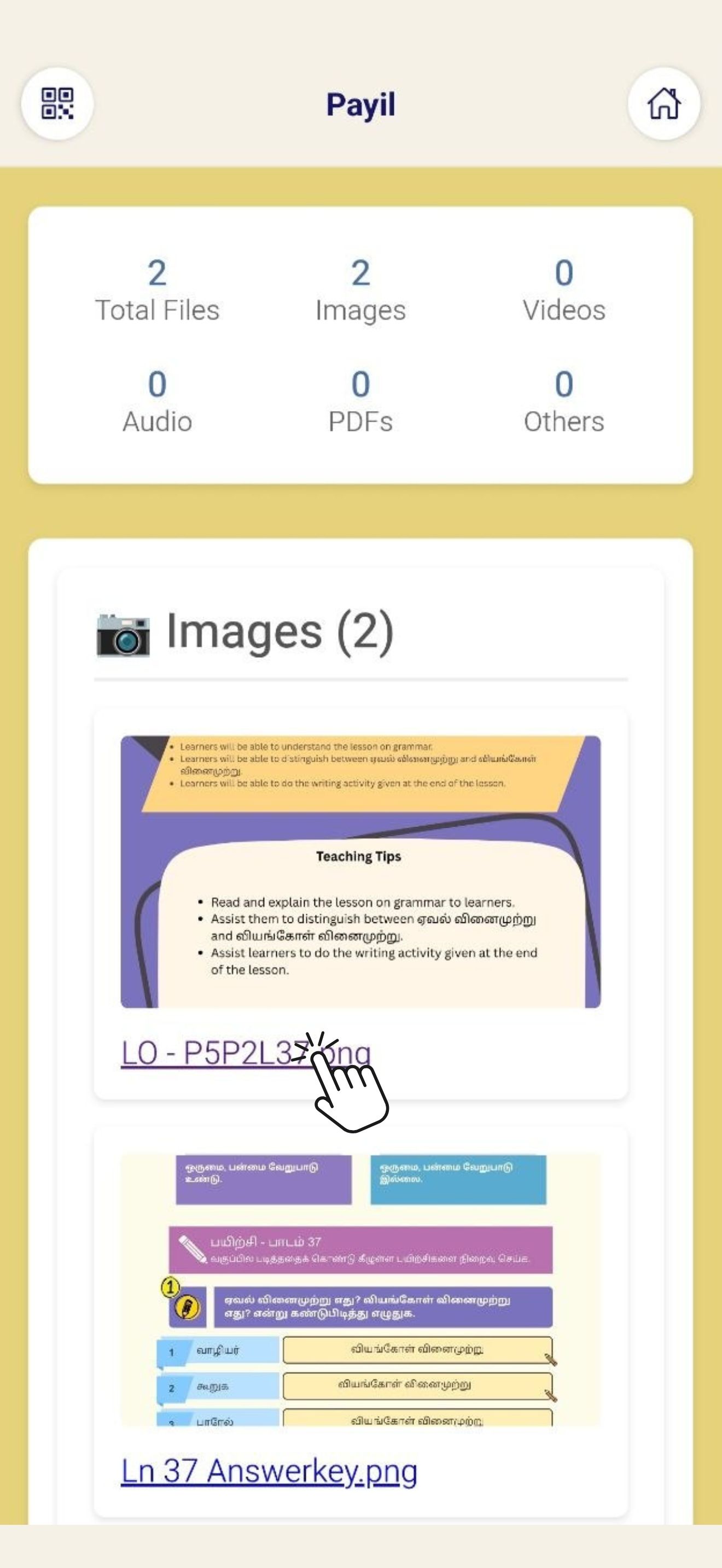
Learning Outcomes
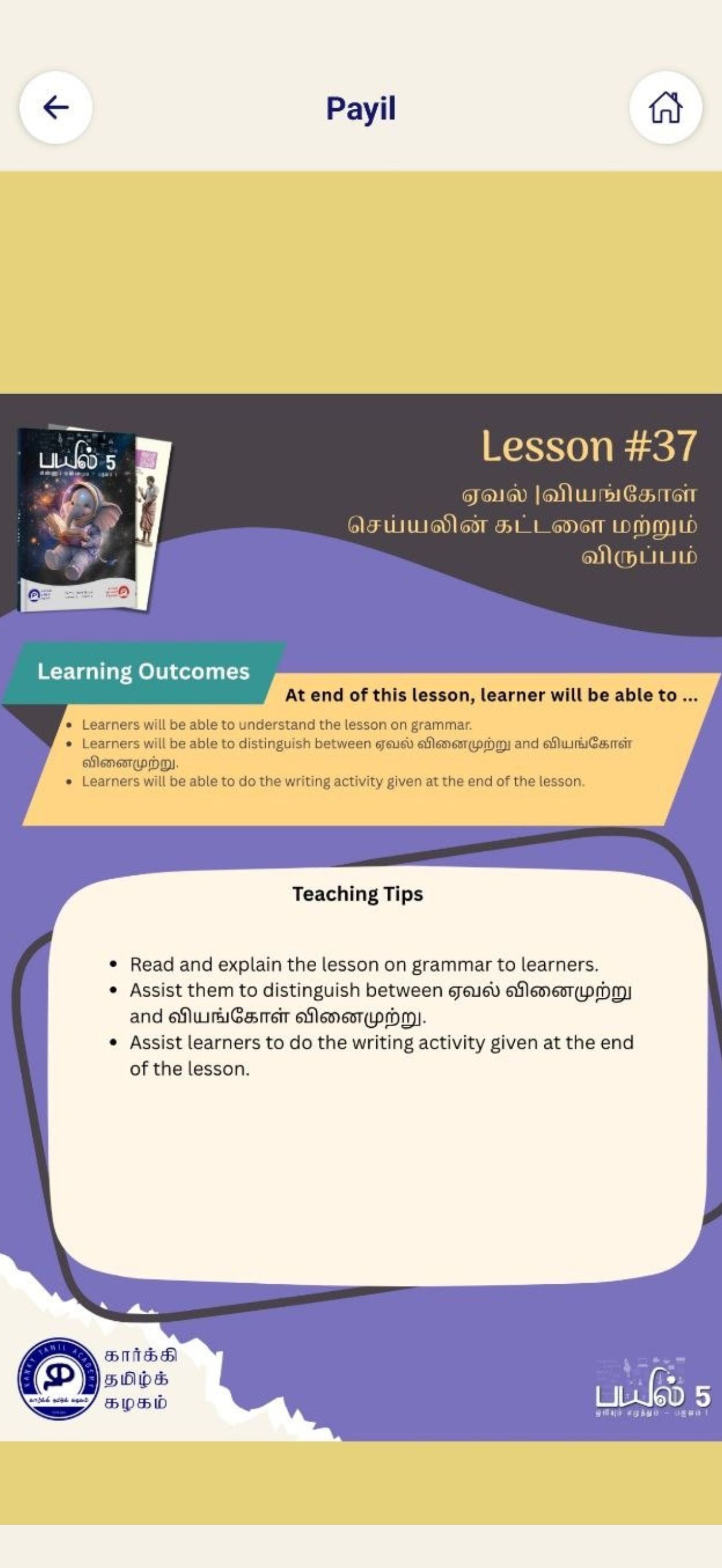
Learning Outcomes
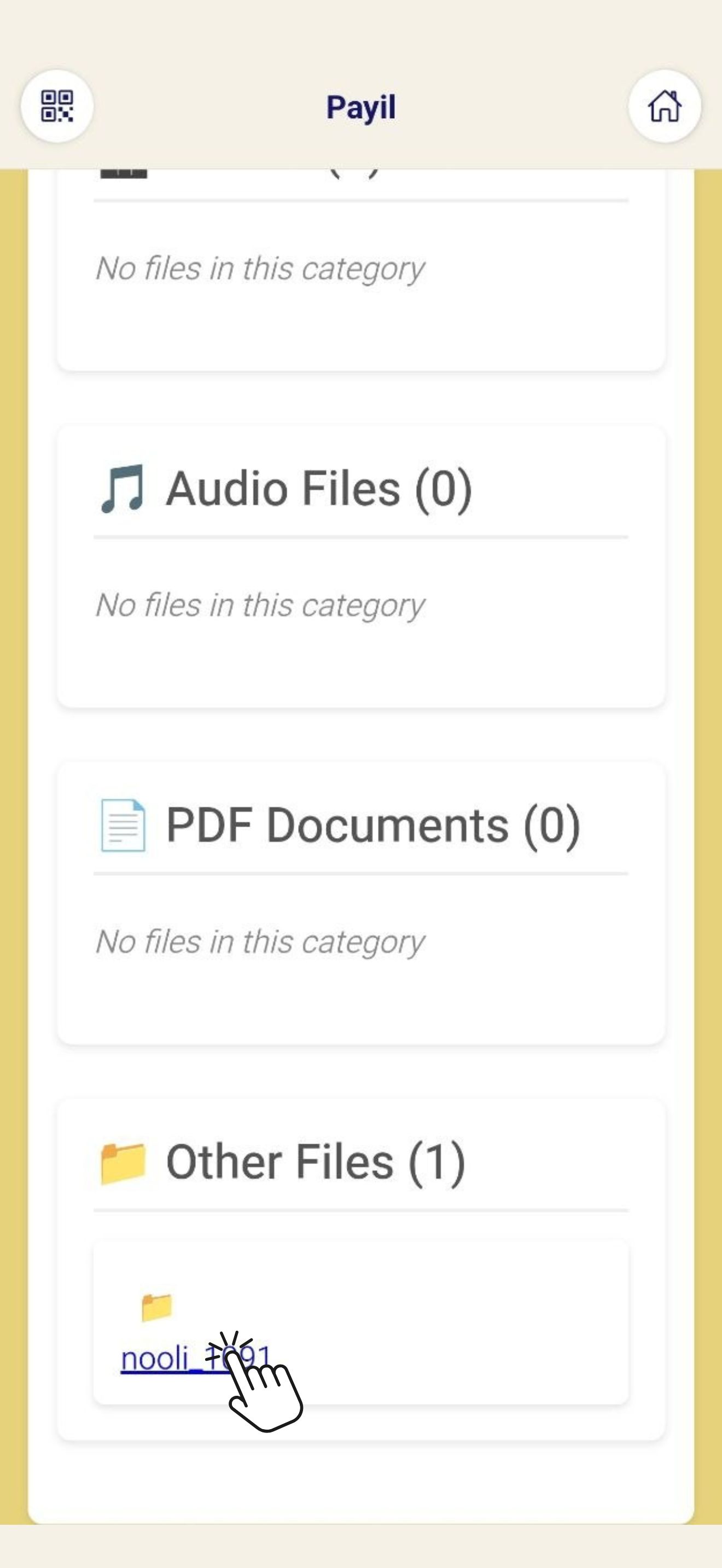
Learning Outcomes
Learning Outcomes
Books
Nooli Book list
Books
Flip Book
6

Playing Audio & Video

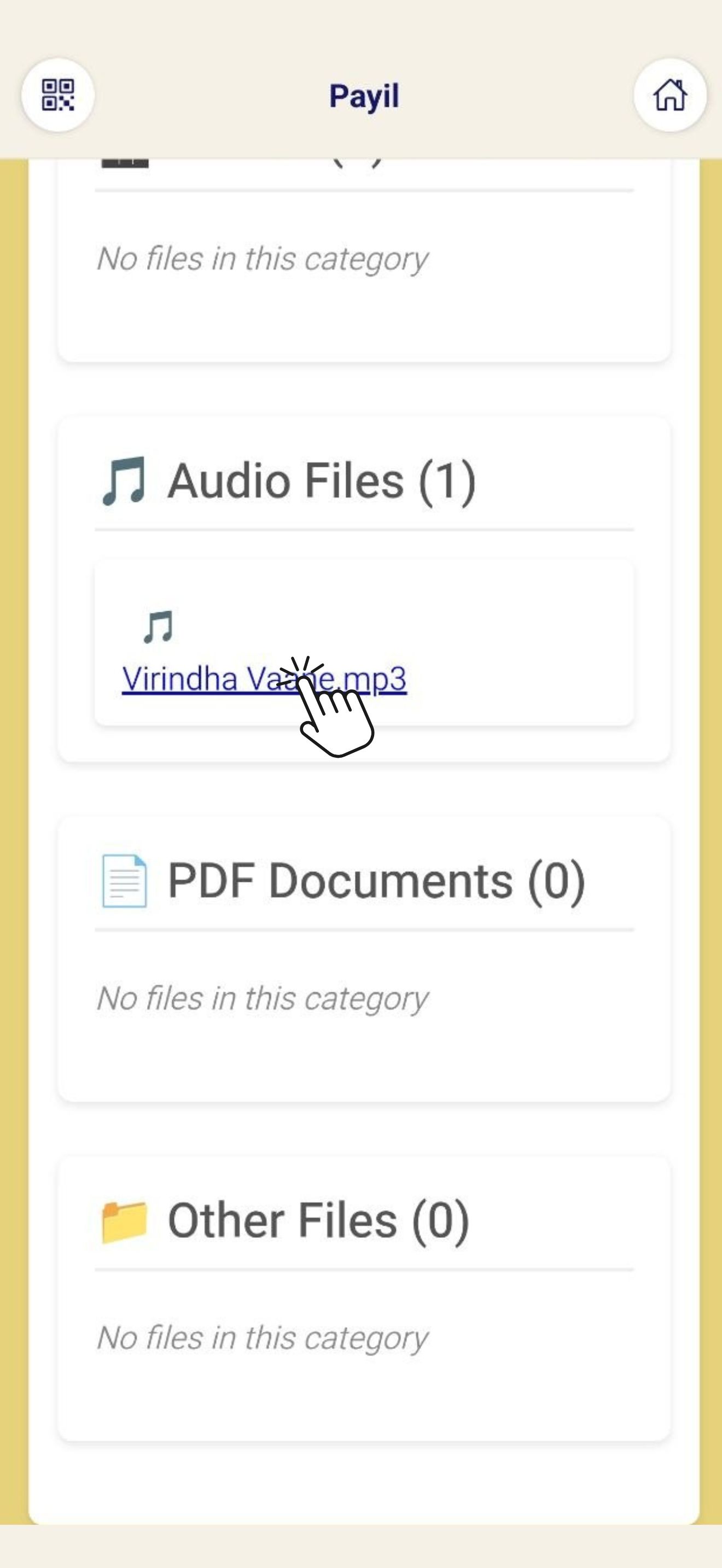
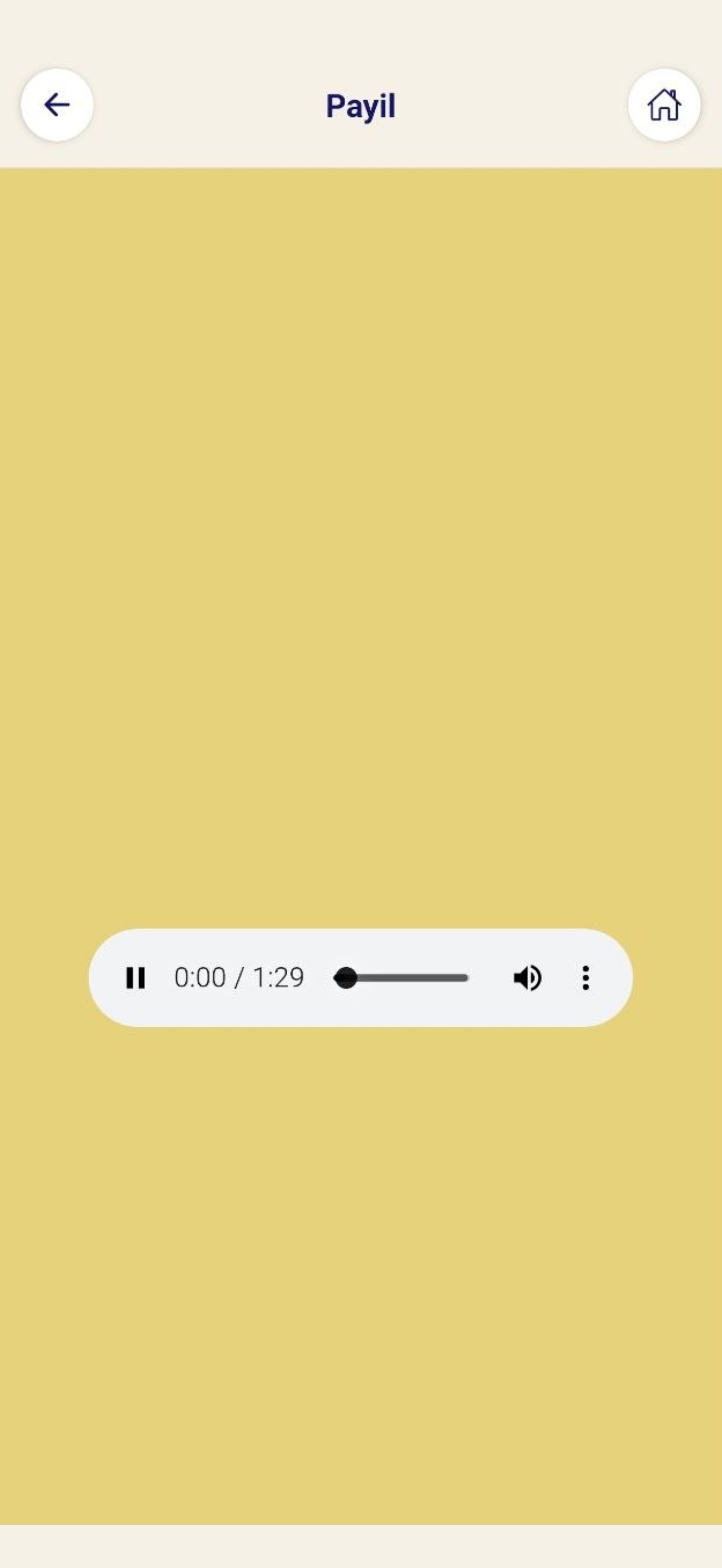
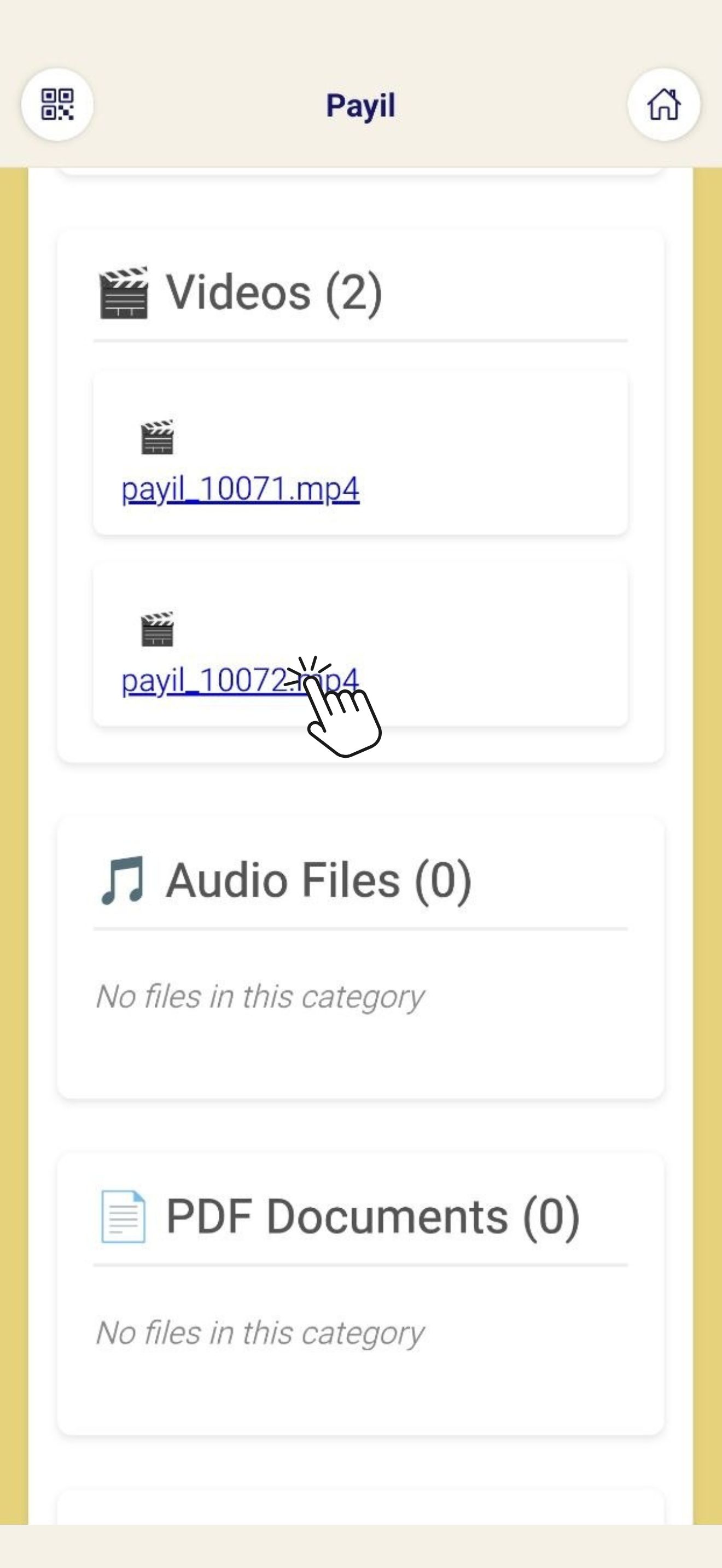
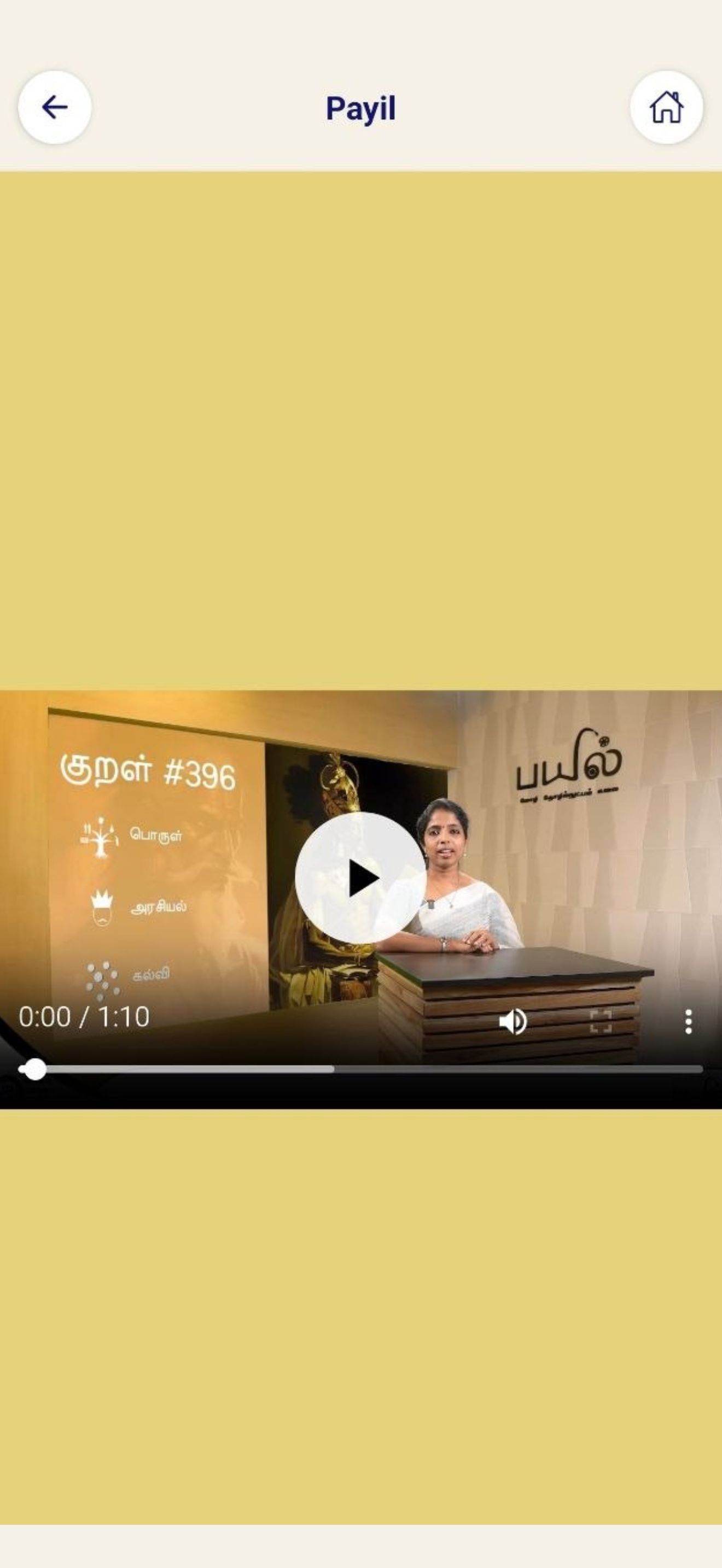
Songs, audio books, and video content can be played directly within the Payil QR app. Tap the play button next to any audio or video item to start playback.

Registration Form
Audio File
Registration Form
Audio Player
Registration Form
Video File
Registration Form
Video Player
⚠️
Audio and video content cannot be downloaded. It is available for playback within the app only. An internet connection is required.
7

Downloading Content

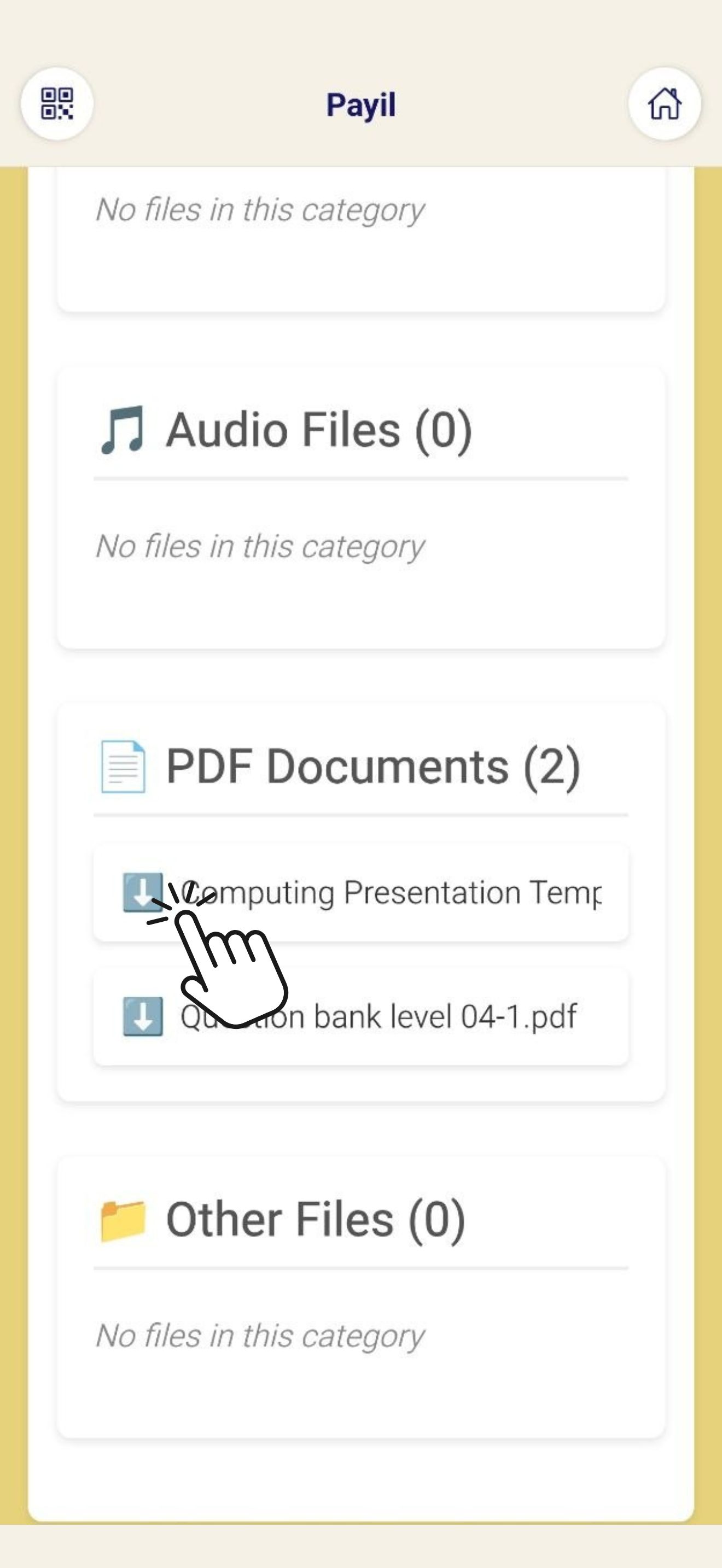
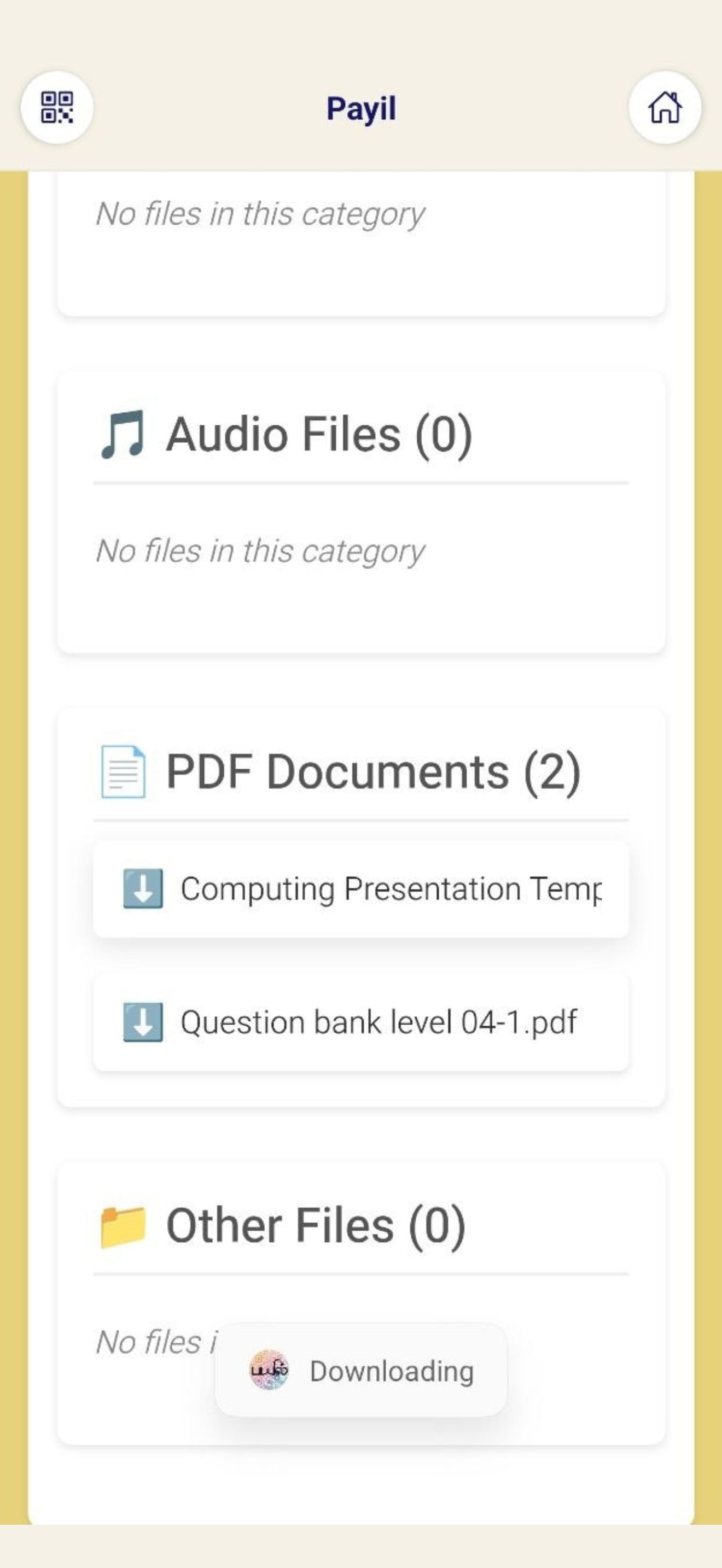
The following content types can be downloaded to your device for offline use:

Tap the Download icon next to any downloadable item. The file will be saved to your device's Downloads folder.

Registration Form
Click Download Icon
Registration Form
Pdf File Download
⚠️
All content is the exclusive property of Karky Tamil Academy and Karky Research Foundation. Downloaded files are for personal classroom or home use only. Please read the Terms & Conditions for acceptable use.
?

Need More Help?

If you experience any issues or have questions, contact us at:

raj@karky.in

Please include your registered email address and school name in your message.